

 Follow us
 Follow us
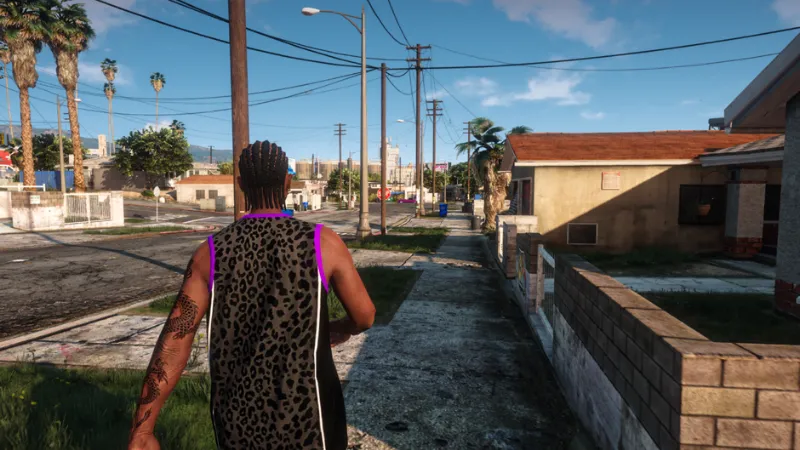
We’ve all been there: you fire up your GTA V, hoping for a relaxing drive through Los Santos, but your old PC has other priorities, namely crashing. Watching your FPS drop to single digits is no fun. The good news is that even more than a decade after launch, Rockstar’s engine is still surprisingly flexible. With the right mods, smart file tweaks, and a few performance-focused tools, you can strip the hidden “bloat” Rockstar added over a decade of updates, making it playable on a lower-tier rig. So if you have an old office laptop with integrated graphics, a hand-me-down desktop from 2018, or a budget build that starts stuttering the moment you launch the game and you want to boost FPS GTA 5, this guide is for you.
What is Hardware Bar
Before rushing to installation manuals, you need to know exactly what you’re working with. Rockstar recently updated the game requirements for their “Enhanced” version, which left many budget players stuck on the older “Legacy” version. Here’s a look at GTA V 2026’s system requirements:
| Component | Legacy Minimum (Potato) | Enhanced Recommended (Modern) |
| OS | Windows 10 (64-bit) | Windows 11 |
| CPU | Intel Core 2 Quad Q6600 | Intel Core i5-9600K / Ryzen 5 3600 |
| RAM | 4 GB | 16 GB |
| GPU | NVIDIA 9800 GT (1GB) | RTX 3060 / RX 6600 XT (8GB) |
| Storage | 105 GB HDD | 105 GB SSD (DirectStorage) |
Why your PC might be struggling? Most performance issues on low-tier computers come down to two big bottlenecks: limited VRAM (video memory) and CPU overload. When you drive fast through the city, the game tries to load high-res textures and FiveM mods for cars, buildings, and pedestrians all at once. If your hardware can’t keep up, you’re dealing with texture loss: roads disappear, stuttering, and random crashes.
Building a Solid Foundation
Before adding visual mods, there are a few essential tools and configurations that will help improve stability:
- Custom Gameconfig: This is where you should start, because it’s the most important mod for low-end players. The gameconfig file changes how the game handles memory allocation so it doesn’t crash during intense moments.
- Heap Adjuster: Another useful tool that helps your system use more RAM to make up for a weak graphics card.
- OpenIV: Essential tool for creating a “mods” folder. Always work inside this folder so you can easily remove changes if something goes wrong without breaking the original installation.
Top-Performance GTA 5 Mods For Low-End PCs
Ready to improve the game’s performance with minimal hassle? These are the best FiveM mods that squeeze out extra FPS without crashing your computer.
1. FSR (FidelityFX Super Resolution) Mod
This is a lifesaver for older hardware. It renders the game at a lower internal resolution (like 720p) and then uses smart upscaling to make it look like 1080p. You get a huge performance boost without turning everything into a blurry, pixelated mess.
Pro Tip: Have an NVIDIA card? Use the DLSS/DLAA mods. For everything else, use FSR.
2. “Ugly Mode” / Settings.xml Tweaks
The reality is that the in-game low settings still leave too much enabled. If that’s the case, edit your settings.xml file (located in Documents > Rockstar Games > GTA V) and disable features the menu won’t let you touch:
- ShadowQuality value=”0”: completely disables shadows for an immediate 10-20 FPS gain.
- LodScale value=”0.000000”: dramatically reduces distant object detail.
3. GTA V Re-Size (Texture Compressor)
Perfect for PCs with 2 GB of VRAM or less. It replaces standard 2K textures with compressed versions, drastically reducing memory usage and eliminating the dreaded “disappearing road” glitch. In short, it keeps your VRAM from capping out.
4. Groove Graphics from ModsHub
This is one of the most popular performance mods, often dubbed the FPS king, and for a very good reason. Instead of offering you the cinematic experience, Groove Graphics focuses on cleaning up the unnecessary visual bloat. Case in point: it removes heavy volumetric fog and reduces distant detail that you can’t see clearly anyway.
It offers three different packs (Vanilla, Moderate, and Ultra-Low) so you can choose exactly how much quality you’re willing to trade for smoother gameplay.
5. FiveM Redux (Optimized Lite)
The original Redux looks stunning but it’s a resource hog for anyone with a lower-end machine. The Lite version (that you can find on ModsHub) keeps improved colors, better lighting, and sharper textures while cutting out the heavy scripts and 4K fire effects that cause crashes. It’s a great way to make the game more modern without destroying performance.
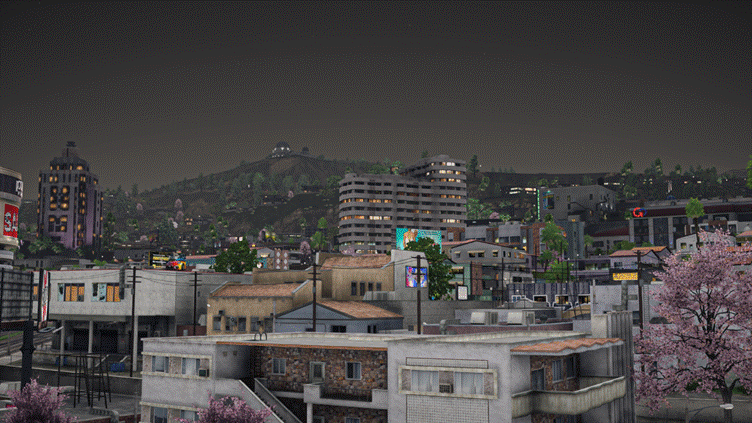
ModsHub AI Optimization Tool
Manually tweaking everything can be time-consuming, not to mention risky. Although many YouTube manuals provide decent enough guidance, one wrong click and you can break your game. That’s where our ModsHub AI Optimization Tool rushes in to save the day: it scans your specific hardware and automatically applies the best settings for you. Here’s a quick look at the tool’s features and how your PC can benefit:
| Tool Feature | Benefit for Low-Tier PCs |
| Memory Allocator | Forces the game to rely more on system RAM when VRAM is full |
| Shadow Stripper | Removes unnecessary shadow layers that consume GPU resources |
| Auto-FSR Linker | Automatically installs the appropriate upscaling files for your GPU |
| Background Freezer | Suspends non-essential Windows processes while GTA V is running |
RECOMMENDED FOR YOU

The Co-Founder Question: When Your Best Friend Is Your Worst Business Partner
Startuprise
Mar 24, 2026


The “Ugly Mode” / Settings.xml Overhaul
Sometimes, the in-game “Low” settings still leave way too much running in the background. If you really want to squeeze out every possible frame, you can manually edit your settings.xml (found in Documents > Rockstar Games > GTA V) and shut off things the regular menu won’t let you touch. Here’s a quick rehash of the lines you can tweak to boost your performance:
- ShadowQuality value=”0”: completely kills shadows and hands you an instant 15-20 FPS boost.
- LodScale value=”0.000000”: makes distant objects load with much less detail so your CPU can finally breathe.
- ReflectionQuality value=”0”: turns off those real-time reflections on cars and water.
What You Can Realistically Expect
After cleaning up your files and running the AI Optimization tool, here’s the kind of improvement most low-end players see:
| Technical Stat | Vanilla “Low” Settings | Optimized with Performance Mods |
| VRAM Usage | 1.9 GB – 2.2 GB | 1.0 GB – 1.2 GB |
| FPS in Downtown | 18–24 FPS | 45–60 FPS |
| Texture Pop-in | High (roads disappear) | Low / Almost none |
| CPU Temperature | High | Moderate |
Smarter In-Game Settings for Low-End Rigs
Installed the mods? That’s not the end of it; you can still make a few tweaks to improve performance.
- Extended Texture Budget. We recommend not leaving this at zero; instead, try to push it up to around 25%. This gives the game a bit more room to utilize RAM to prevent the “disappearing world” glitch.
- Population Density. Slide it left. Fewer cars and NPCs will significantly reduce CPU load.
- Post-FX. Keep it at “Normal.” Higher settings add expensive effects, like blur and bloom, for very little visual payoff.
Common Mistakes That Kill Performance
- Using Reshade on Weak Hardware. It can look nice, but on lower-end PCs it completely overwhelms your GPU. Skip this if your FPS rate is already struggling.
- Ignoring the “Mods” Folder. One thing you should remember: never drop files straight into the main game folder. This mistake is painfully common, so spare yourself from total chaos if something breaks and use OpenIV’s “mods” folder system. You’ll thank yourself later.
- Running GTA Online with Heavy Mods. Also known as the fastest way to get banned. If you want to play with your buddies on a low-end setup, stick to FiveM. It won’t mess with your account and is much better optimized for custom assets.
Final Thoughts
Your old PC shouldn’t hold you back from enjoying GTA 5. In 2026, the right combo of performance mods, small tweaks, and tools like ModsHub’s AI optimizer can turn a slow, stuttering mess of a game into a smooth, enjoyable walkthrough. Here’s the final advice: don’t rush headlong into it; start small. Back up your files, and as you progress, make sure to test out each change carefully, no matter how minor. And once everything clicks, Los Santos will smoothly run on your PC.
Recommended Stories for You

Startuprise Nov 4, 2025

Startuprise Oct 17, 2025

Startuprise Aug 25, 2026

Startuprise May 12, 2025
Trending Stories

7 Signs You Need a Financial Advisor in Singapore
Why Rent Car Dubai Is the Smartest Mobility Choice for Startups, Entrepreneurs, and Business Professionals

Tips to find a broker in Asia

The Future of Group Health Insurance: Trends and Best Practices
Practical Ideas to Use Custom Badges to Promote Your Business

How to Choose the Right Insurance Policy When Considering 1 Crore Term Insurance
Video localization: a first-market playbook for Asian startups

Talent Mapping How Recruiters Build Better Candidate Pipelines Before Hiring Begins